
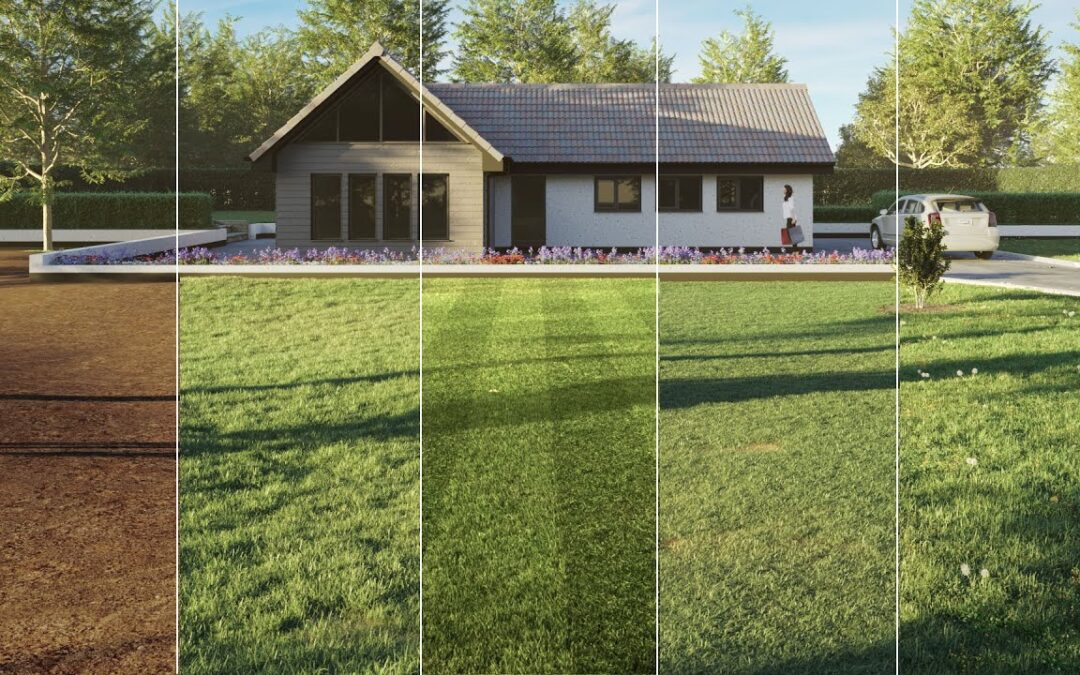
In this short tutorial we’re going to talk about lawns, specifically we’re going to take a look at how to add realistic grass to you scenes using the presets that ship with Forest Pack Pro, and then, in the second part we’ll look at how the presets can be modified to create a few looks that aren’t available out of the box. There are 6 short parts to this video First of all, a couple of tips to liven up the Terrain under the grass Second we’ll add a Simple Grass preset, Next we’ll add some overlays to add some subtle visual interest.
Then we’ll remove the weeds and cut the grass (if only it was this easy in real life) Next we’ll show a simple way to add stripes to your lawns by modifying the materials And finally we’ll stripe the lawns by manipulating the geometry itself, which will give you more physically accurate results for those close ups where it really matters. If you’re only interested in one of those topics, then this video has been chaptered so you can quickly jump to the part that you want to watch. Before we add any Forest Objects, let’s take a quick look at the Terrain. At present, I have a simple spline for the terrain. I can convert it to an editable poly, but of course lawns are seldom this perfectly flat. To fix it, in a second we’ll add a noise modifier, but before we do, we need to increase the polygon count a bit. Add a Subdivide Modifier and then decrease the parameter until you have a nice even amount of polygons, sufficient for the detail you require. Now you can add the Noise modifier and change the Z Strength and the Scale settings until you get a little unevenness.
Try not to over do it. Now, there might be an issue around the borders where the lawn is likely to connect to the surrounding hardscaping. The noise modifier may cause these seams to open up as you can see here. To avoid this, add an Edit Poly modifier below the Noise Modifier. Go to the Border sub object level and then select the terrain’s boundary. Hold down Ctrl and click on the Vertex sub object button to convert it the border to to a vertex selection. Hit grow a few times until you have a wide border around the edge of your area and then hit Ctrl + I on the keyboard to invert the selection. Next enable Soft Selection, and then increase the Falloff Distance so you’ll get a nice gentle decay around the edge. Now the majority of the terrain has some noise with the edges remaining unaffected so that they remain connected to the surrounding landscape. We’ve improved the ground plane a little, so let’s add some grass. All the examples in this video use the Forest Pack presets which is the fastest way to add grass to your scene.
To use them: Go to the Create panel, to the iToo Software section and click on Forest Pack Pro Click on the button to open the Library Browser. There are two collections of grass in the presets folder: Lawns and Layered Lawns. The Lawns collection is older, and for most scenarios I tend find that the Layered Lawns presets give me better results, but feel free to experiment. —————————————————————————— You’ll notice there are two types of presets available. Large and Detail. Which one should you choose? For most purposes the Large presets are the ones to go for because that are made from precomposed 60cm or more circular patches of grass that allow you to fill large areas without having to scatter millions of individual plants. It’s much more efficient. On the other hand, the detail presets are made from much smaller clumps, or even individual plants, and are designed for use in close up renders or when the terrain is so uneven that patches aren’t suitable. Select one of the Base Layer presets. There are 6 of them which are gradually more worn looking the higher the number. There are also some all in one presets that include flowers, but we’ll add these in a separate step today for more artistic control. The healthiest looking lawn is the first so we’ll stick with that.
Select it, and click Import. Click on the surface to add grass. Remember, if you want to add more surfaces, you can go to the Surfaces rollout and then click on the Add button and select an additional surface from the scene. You can do this for as many surfaces as you need. When using large presets you can get a situation like this where you have grass extending beyond a very clearly defined edge. To fix it, go to the Areas Rollout and then select the Surface from the Areas list. Change the Boundary Checking mode to Edge. It’ll look the same in the viewports, but at render time the patch with be clipped per element for more clearly defined edge. You can see a preview of this in Points Cloud mode by Ctrl+Clicking on edge mode. This preview slightly reduces performance so I wouldn’t bother except for when you temporarily need a more accurate preview. Now hit Render. That’s all there is to it – Instant Grass!! Lawns are often a combination or grasses plus a host of other small plants and weeds.
One of the best ways to be able to art direct your lawns is to build this up using serveral different layers of vegetation. Don’t worry about the plants intersecting, it’s seldom visible in the final renders. The Layered Lawns presets have been designed for this and include several options to add additional vegetation to your base grass layer. Let’s add a few of them to illustrate. The easiest way to add an additional layer is to clone the existing grass. That way you don’t need to keep adding the areas for each new Forest Pack object. With the grass selected, press Ctrl+V and make sure that you set the mode to Copy. I’ll call this one fp_chickweeds so it’s easy to identify later. With the cloned Forest Pack object selected, go to the Geometry rollout in the Modify Panel. Click on the button to open the library.
Go to the Layered Lawns library and pick an overlay preset. In this case I’ll add chickweed. Click Load Selected. The grass is replaced with a Chickweed preset, but the surfaces and any other areas are maintained. If you render this the effect is subtle, but you can see for example at the bottom here, that the grass is less homogeneous because there are other plants breaking up the repetition. We can add more. Clone the Forest Pack object another time by clicking Control+V. Name it fp_buttercups, then go to the Geometry rollout and open the Library. This time we’ll select and import the Buttercup preset. Render now and we have added another subtle overlay. You can see it just here. The idea is to break up the grass naturally, without any one layer drawing attention to itself. OK, but what if we actually want something a bit less subtle. Let’s add some dandelions. Clone the Forest Pack object a 3rd time by pressing Ctrl+V.
Name it fp_dandelions. Go to the Geometry Rollout an open the library browser. This time I’ll pick one of these showier dandelion presets and click Import. Now if you render you can definitely see the difference! Now maybe that’s a few too many Dandelions, and this brings me to an important point, you can easily adjust any of these presets to get the particular look you’re after. Typically you’ll be adjusting the Density to add more or fewer plants. In this case we’ll reduce the number by going to the Distribution rollout and Increasing the Density value until we get a sparser distribution. If you Render now you’ll get a much more subtle effect. If you want it really subtle you could even increase the density a little more. Of course you can change any aspect of these scatters including the distribution pattern, density, cluster sizes, global size and even transforms, as we’ll see next.
This lawn is looking pretty wild. Let’s make it look a bit more cared for. First of all we’ll turn off the plants and weeds by opening Forest Lister and disabling these objects by clicking on the check marks. No need to hide them too. Next select the Grass layer. We want it to look a little shorter. Go to the Transform rollout. Let’s separate the Scaling axes so that we have separate control over XY and Z. That way we can shorted the grass by scaling the Z height of the patches, without opening up gaps between them. Change the Z Axis Minimum to 40% and the Maximum to 50%. Now if you render you have a much neater looking lawn, but really it’s exactly the same preset! On the theme on tidy gardens, we’ve all seen those perfect freshly mowed striped lawns, but how can you achieve this with Forest Pack in 3ds Max? Well it helps to understand why it happens. The striping is caused by a roller on the mower that flattens the grass into stripes with opposing directions.

As a result, what we perceive as a colour variation is actually caused by the way the grass is reflecting light back to the camera. We can simulate that a couple of ways then, by recreating exactly the cause of the striping and making a Forest Object with stripes of grass with different rotation values – which takes a bit of work – or for renders where the camera isn’t so close up, you can probably just cheat it with a map. Let’s try the latter first of all: Select the Grass Forest Pack object and go to the Geometry rollout Open the Material Editor Instance the material from the Material slot in the Geometry rollout to the Material Editor. Find the grass materials in the multi sub object material. In Layered lawns there are two, one on ID 4 and one on 5 Create a new Gradient Ramp map and change the interpolation to Solid. Now, how to we define the UVs for this scatter? In other tutorials we show the use or Forest Colour’s Tint by Surface feature for this kind of thing, but it has the drawback that the whole patch will take the same value so you don’t get great definition – plus the tint feature is already being used for something else. Instead the trick is to use the good old fashioned planar from world XYZ mapping type which simply projects the map on the worlds Z axis.
It removes the need to UV map anything, and it also doesn’t have the same limitations as using Forest Colour’s Tint settings. To control how big the stripes are, turn on Use Real World Scale and the set the Size. I’m going to go for 150cm in this example. So we have our stripes map, where to connect it? We could wire it to the Diffuse input and then Wire the original map to the first flag. Next wire the same map to the second input via a Colour Correct map and slightly lighten or darken the map. Another option, since in real life the effect is caused by differences in angle causing more or less light to reflect to the camera, is to wire it to the Reflect Map input.
You can then use the colours to make stripes of more and less reflective grass. It’s a total cheat, but for midground renders the effects can work quite well as you can see here. Finally, If you really want to recreate the actual geometry of a striped lawn then we’ll need to start with a different preset. Remember this grass is made from 60cm patches, so we can’t rotate it without it looking like a load of strange green man hole covers on edge in your scene. Instead: We’ll create a new Forest Pack object, and open the library. This time using a preset from the older Lawns library. I’m going to choose the Common Grass presets, and in this case we’ll use the Detail version because we want individual plants rather than patches so that they can be rotated. Select it and click on the surface.
Go to the Transform rollout and change the X Rotation Minimum property to -85% and the Maximum to 85%. Create a Gradient Ramp and set the interpolation to solid. Change the first flag to Black and the second to White. This map will control the X Rotation of the scattered objects, the Black colour will tell Forest Pack to use the Minimum rotation value and the white value the maximum. Since we don’t want any values in between to be used, we don’t want any greys, and for that reason it’s also important to remember to set the Blur value as low as possible or you’ll get tufty grass sticking up between the stripes.
For this map we will have to use the UVs on the Terrain, so if it’s not already UV mapped you should add a simple UVW modifier. Finally, set the maps X Tiling value to decide the number of stripes. Assign the map to the Map input of FP’s Transform > Rotation settings. Check the option so that the X Axis uses the map to control the rotation.
Uncheck any others If we change the display mode to pyramid you can get a clearer idea of what’s going on. As you can see, we now have stripes of items facing in alternating directions. Let’s take a quick look at the source geometry. Right Click on the Forest Pack object and click Select Forest Custom Object. Open the Layers manager and move it to the active layer so we can take a look. As you can see we’re actually scattering little patches and so rotating them nearly 90 degree will result in a lot of the geometry being lost in the terrain. We can compensate by going to the Geometry rollout and slightly increasing the Z – Offset property. While we’re look at this geometry we could also remove a few of the blades with a large bend angle since they’ll affect the flattened look that we’re going for.
(Though it’ll still work fine if you don’t bother.) Now back to the FP object, we’re nearly ready to render, but because we used a Detail preset we’re scattering a LOT of objects so we’ll need to remove or increase tje limitations on the number of items Forest can scatter. Go to the Display rollout, and either add a few zeros to the Render > Max Objects parameter or simply set it to zero to remove the limitation completely. Render! You can now see the effect of the map to create a striped lawn effect. At this point I’d also like to remind you that if the colour of the lawn presets needs a little adjustment, then Forest Pack 7 and above has some nifty Colour Correction tools found in the Materials rollout. From here you can shift the hue, alter the brightness and reduce the saturation. And here’s our final lawn with a little post-production applied Here ends our video on using Forest Pack’s built-in grass presets. We hope you found it useful and that you now feel confident to create several types of lawn. Of course we’ve focused here on using the presets, but you can create your own lawns.
In this related tutorial we show you how to create your own patches from individual plants. Check it out! As always, we’ll be releasing more regular tutorials soon, so if you don’t want to miss an update, please feel free to subscribe to our channel.
.